

A white screen appearing on an LED display is not caused by the failure of a single LED lamp,but rather by a system-level or regional signal/power supply failure.
From an optical perspective, white light is formed by mixing equal amounts of red, green, and blue primary colors. When the driving circuit (such as the receiving card or HUB board) malfunctions, it may cause the red chip to be completely undriven, while the blue and green chips are illuminated at high brightness. The mixture of these two then appears cyan or grayish-white.
Alternatively, and more commonly, the signal processing chain completely loses control, causing all chips to emit light randomly at maximum brightness, resulting in a full-screen white light.
Causes of the problem and solutions:
I.Signal source and control system problems (most commonly encountered during new installations or commissioning)
1)Input signal anomaly:
–The resolution or refresh rate of the signal source device (computer, player) exceeds the receiving range of the LED display, resulting in a protective white screen on the display.
–Signal cable problem: Poor quality, excessive length, or loose connection of the HDMI/DP/DVI cable causes signal interruption.
Solution: Check the signal source output settings and adjust them to the optimal resolution/refresh rate supported by the display; reconnect or replace the signal cable with a shorter, higher-quality one.
2)Control system settings error
–Sending card/receiving card parameters are missing or incorrect: Settings such as screen width/height (in pixels), OE polarity, scanning method, data flow direction, etc., are incorrect.
–An incorrect program or configuration file has been loaded.
Solution: Use the control software (such as Nova, Linsn, Colorlight, etc.) to re-read or correctly set the parameters and load the correct configuration file.
3)Control System Hardware Failure:
–Sending card failure: Unable to process and distribute signals properly.
–Receiving card failure: One or more receiving cards are damaged, leading to a blank screen in the corresponding cabinet(s) or area(s).
Solution: Observe the extent of the blank screen. If the entire screen is blank, focus on checking the sending card and the main signal link. If it’s a localized, regular blank screen (e.g., an entire column or row of cabinets), focus on checking the corresponding receiving card. Try replacing the parts with spares for testing.
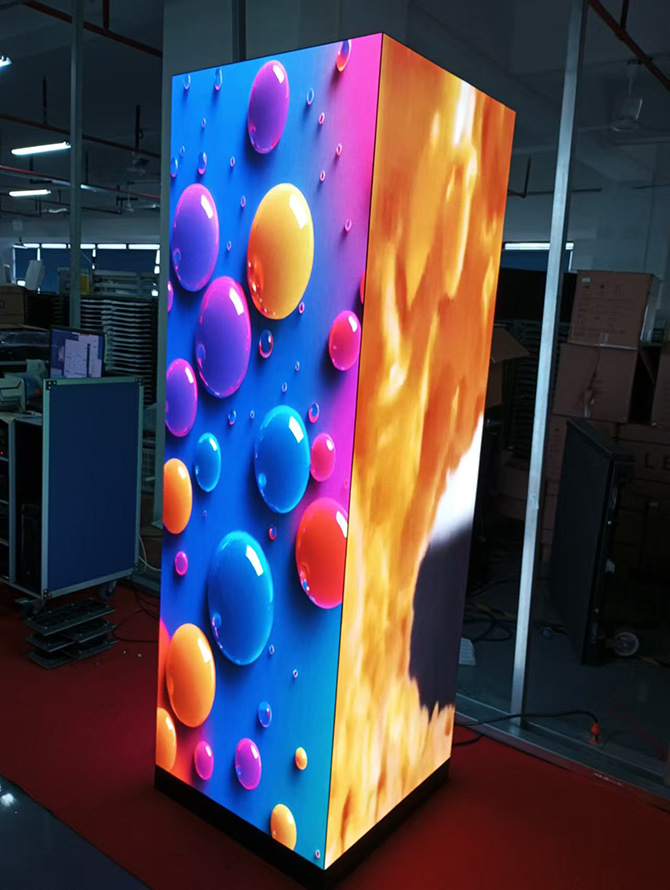
II. Power Supply and Distribution Issues
1)Power supply failure: Module damage or aging, resulting in excessively low output voltage (e.g., below 4.5V).
2)Wiring problems: Poor contact, oxidation, or excessively thin cables, leading to excessive voltage drop at the end.
Solution: Measure the power supply output voltage in the faulty area (should be around 5V); check and tighten all power supply terminals.
III. Data transmission link problems (high incidence area)
1)Network cable/fiber optic cable problems: Loose or damaged connections, often leading to abnormalities in the entire cabinet.
2)Ribbon cable/flat cable problems: Loose connections, detachment, or oxidized contacts, often leading to abnormalities in individual modules or rows/columns of pixels.
Solution: First, disconnect the power and then re-plug all data ribbon cables and clean the contacts; secondly, check and replace the network cable/fiber optic cable.
IV. Module and LED Panel Level Problems
1)Driver IC damage: Failure of row/column driver chips (such as 4953, MBI5124).
2)PCB circuit break: Vias or traces broken due to corrosion or impact.
Solution: Requires professional personnel using specialized tools (hot air gun, multimeter) for chip replacement or wire repair; module replacement may be necessary.
V. Software and Synchronization Issues (for synchronized screens)
1)The computer’s graphics card driver is malfunctioning, or the playback/control software parameters are incorrectly set.
Solution: Update the graphics card driver, restart the control software, and carefully check all display screen parameter settings.
 English
  简体中文
简体中文  Português do Brasil
  Italiano
  Español
  Français
  Deutsch
  Русский
  한국어
한국어  日本語
日本語