

O Huidu A5 é um reprodutor de modo duplo: síncrono e assíncrono. A operação síncrona abrange dois tipos de cenários:
(1) Sincronização de vídeo externo HDMI Sincronização em tempo real da tela do PC ou do decodificador em uma única unidade.
(2) Sincronização de unidades A5 através de uma LAN para exibição ou reprodução sincronizada em várias telas.
I. Sincronização de vídeo HDMI em tempo real: sincronizando uma fonte de vídeo externa em uma única unidade:
(1) Fiação do hardware:
①Saída HDMI do computador, reprodutor ou decodificador para entrada HDMI do Huidu A5.
②A porta Ethernet A5 conecta-se à placa receptora R712 para controlar a tela de LED.
③Para sincronização de áudio, sincronize através da fonte de áudio HDMI ou envie o áudio para as caixas de som usando a porta de áudio de 3,5 mm A5.
(2) Etapas de configuração do software HDSet:
①Conecte o A5 via Ethernet ou Wi-Fi e use o HDSet para procurar e selecionar o dispositivo.
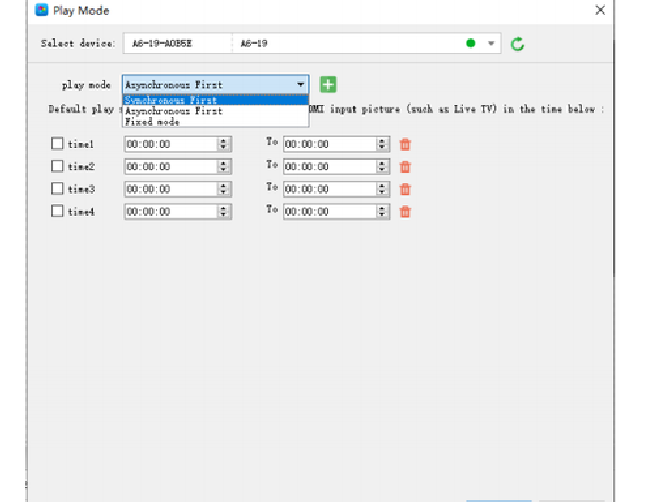
②Menu superior: Configurações para o Modo de Reprodução.
③Seleção do modo de reprodução: Síncrono Primeiro, prioriza a entrada HDMI ao vivo e alterna automaticamente para conteúdo offline se a conexão HDMI for perdida.
④ A função "Resolution Matching" alinha a resolução de entrada HDMI o mais próximo possível da largura e altura da resolução da tela e permite o redimensionamento da imagem.
⑤Clique em OK para enviar os parâmetros; a tela será sincronizada em tempo real com a imagem da fonte de vídeo HDMI.
II. Sincronização de programas via LAN para várias unidades HD A5, com várias telas exibindo o mesmo programa em sincronia:
Para aplicações como displays em postes de iluminação, telas de publicidade em lojas de grandes redes e reprodução sincronizada em várias telas, cada unidade A5 controla uma única tela de forma independente, garantindo uma sincronização visual perfeita.
①Todos os modelos A5 são padronizados como HD A5 e compartilham a mesma versão de firmware.
②Todas as especificações da tela LED, incluindo resolução, taxa de atualização e parâmetros do módulo, são idênticas.
③Todos os dispositivos reproduzem exatamente a mesma lista de reprodução, duração do programa e efeitos especiais.
④Todas as conexões devem ser feitas diretamente no mesmo switch LAN por meio de cabos; o roteamento cruzado é proibido.
(1) Redes de hardware:
① Conecte a porta Ethernet de cada unidade A5 a um switch Gigabit; elas estarão na mesma LAN.
②Não é necessária nenhuma configuração manual de IP, o A5 identifica automaticamente os IDs dos dispositivos na LAN.
(1) Configuração dos parâmetros de sincronização do HDSet:
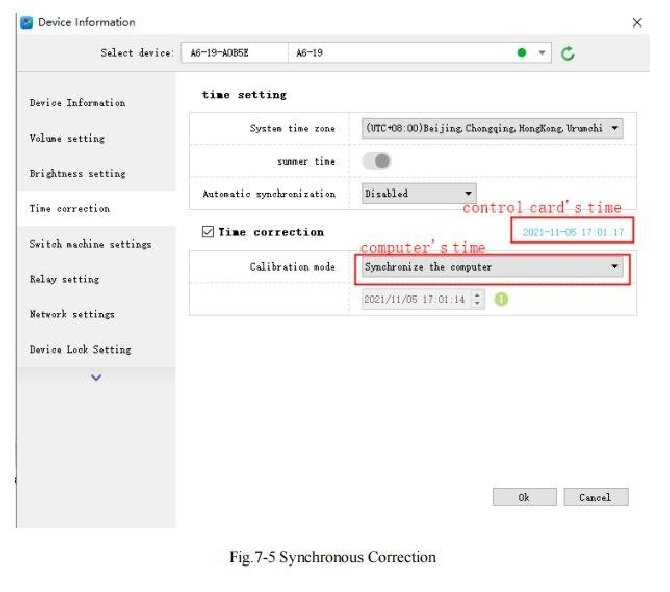
①Selecione todos os dispositivos A5 e acesse Configurações > Configurações de Hora.
②Seleção de correção de hora Sincronizar o computador sincroniza a hora do computador.
③Após a emissão, o horário do sistema de todos os dispositivos é sincronizado em nível de milissegundos.
(2) Habilitar grupo de sincronização de várias máquinas:
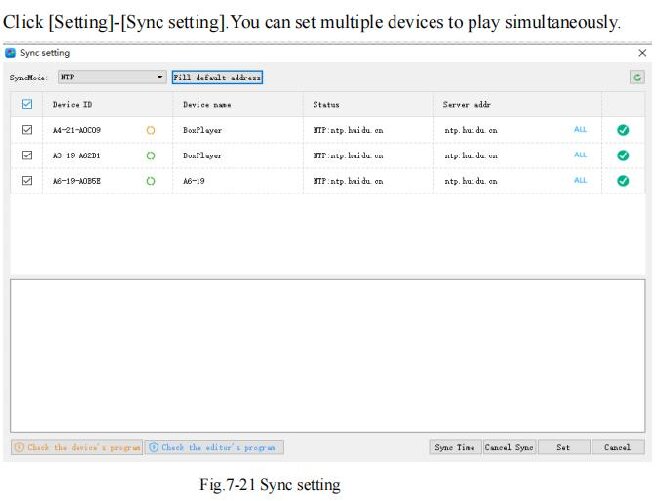
①Configurações do menu para sincronizar as configurações.
②O software verifica automaticamente a rede local em busca de todos os dispositivos A5 online.
③Selecione todos os dispositivos que precisam de sincronização e defina o Modo de Sincronização para Sincronização de Rede NTP para todos eles.
④ Clique em Sincronizar Hora para sincronizar os relógios e, em seguida, clique em Definir para salvar o grupo de sincronização.
III. Sincronização de videowall em cascata HDMI: Não suportado pelo A5. Explicação de soluções alternativas:
A HD A5 não possui uma porta de saída HDMI para conexão em cascata, portanto não pode ser usada para interligar conexões HDMI e formar uma tela grande e unificada como a A6L.
A junção de múltiplas telas só pode ser realizada por meio de...
①Processador de vídeo que distribui sinais HDMI para várias unidades A5 com sincronização de fonte externa.
②Sincronização LAN Multi A5, com cada tela exibindo uma seção específica da imagem.
IV. Solução de problemas comuns de sincronização:
(1) Dessincronização e desalinhamento de imagens:
①Verifique se todas as resoluções de tela e configurações de taxa de atualização são idênticas.
②Ressincronizar o horário do computador e emitir parâmetros de sincronização do grupo.
Substitua os cabos e switches Gigabit Ethernet e evite usar Wi-Fi para sincronização de redes.
(2) HDMI sincroniza, mas sem imagem:
①Alterne o modo de reprodução para Síncrono Primeiro.
② Confirme se a saída da fonte de sinal HDMI está funcionando corretamente e se o cabo atende ao padrão HDMI 2.0 ou superior.
(3) As velocidades de reprodução variam entre diferentes dispositivos:
① Atualize o firmware de todos os dispositivos para a mesma versão.
②Não adicione efeitos especiais dinâmicos variáveis ao programa; padronize a taxa de quadros do vídeo para 25, 30 ou 60 fps.
 Português do Brasil
  English
  简体中文
简体中文  Italiano
  Español
  Français
  Deutsch
  한국어
한국어  日本語
日本語