D16を見てみましょう
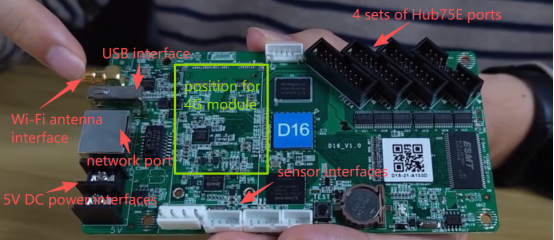
これは4Gモジュールが搭載されたD16制御カードです。
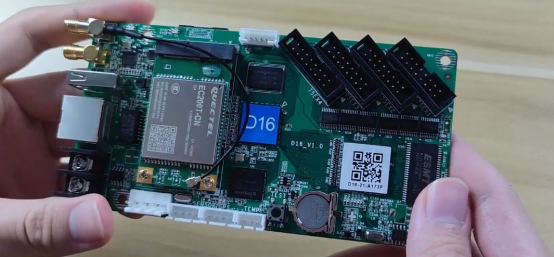
こちらは4G SIMカードスロットです。4G SIMカードをここに挿入してください。
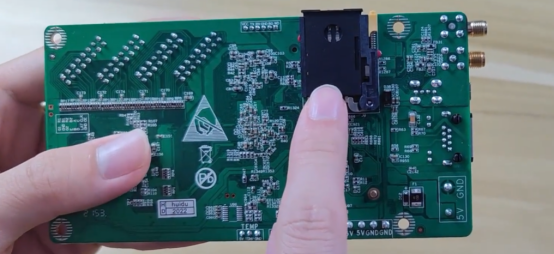
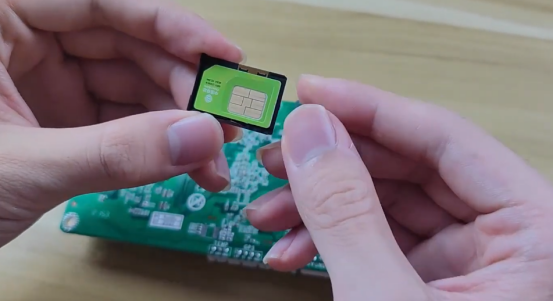
1. D16をディスプレイに接続し、画面をデバッグします。
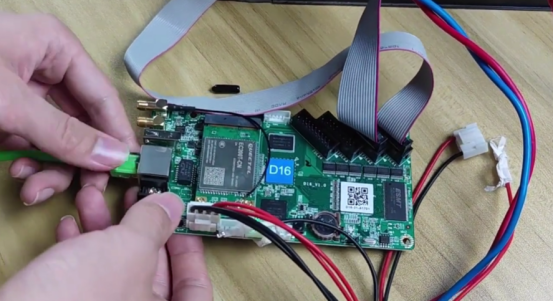
2. HDプレーヤーを開きます。
3.設定とクラウドサービスをクリックし、パスワードを入力します。
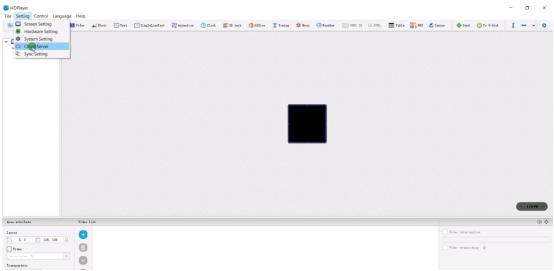
4. XiaoHui Cloudのユーザー名とアドレスを入力し、「OK」をクリックします。緑色のアイコンが表示されたら、設定は成功です。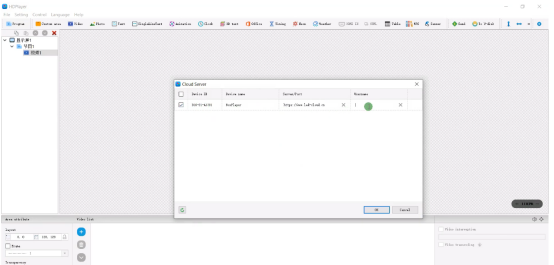
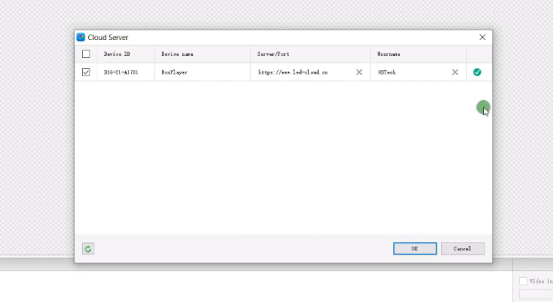
5.ネットワークケーブルを抜くと、制御カードは4Gネットワークを介してインターネットに接続されます。
6.これは4Gインジケーターです。4Gインジケーターが緑色に点灯している場合、D16がXiaoHuiクラウドに正常に接続されたことを意味します。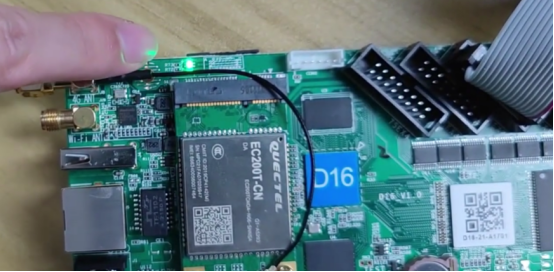
7. Xiaohui Cloud にログインすると、デバイス リストに D16 デバイスが表示されます。
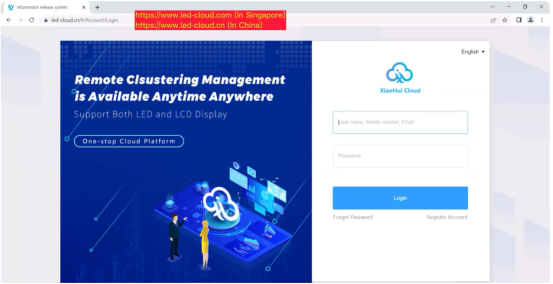
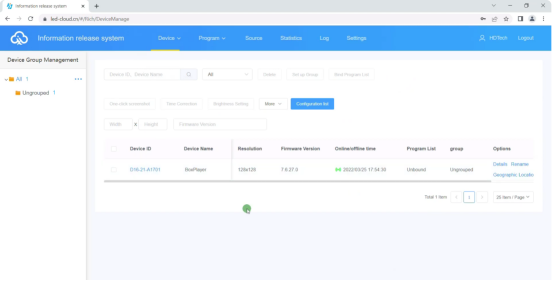
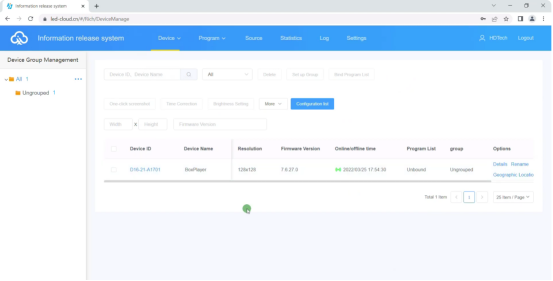
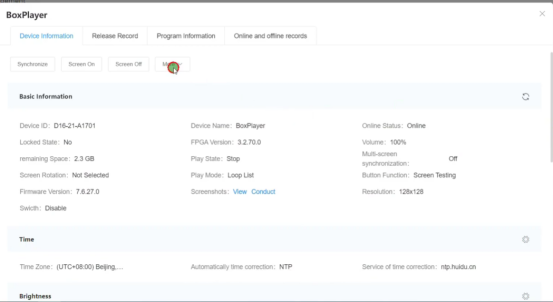
8.デバイスリストでは、画面の明るさを設定したり、リリース記録やプログラム情報を表示したりできます。
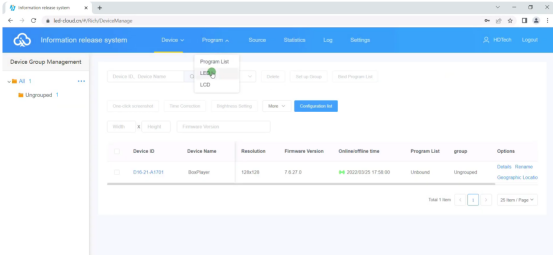
9. プログラム一覧では、プログラムの編集、プログラムの公開などを行うことができます。
10.ソースリストでは、ビデオ、画像、ドキュメント、音楽ファイルをアップロードできます。
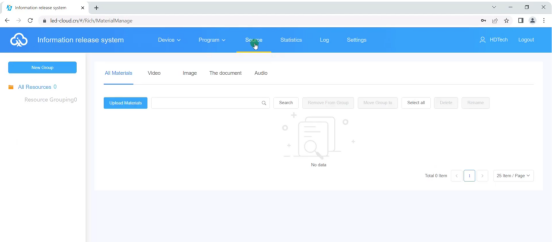
11.ソースリストの「素材をアップロード」をクリックします。
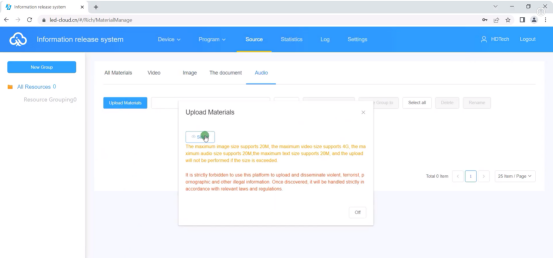
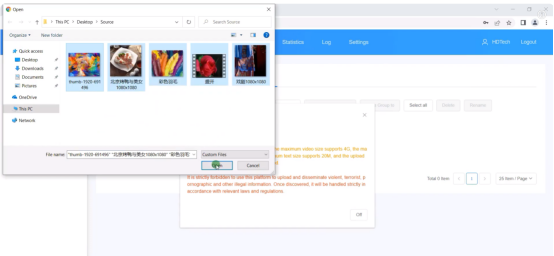
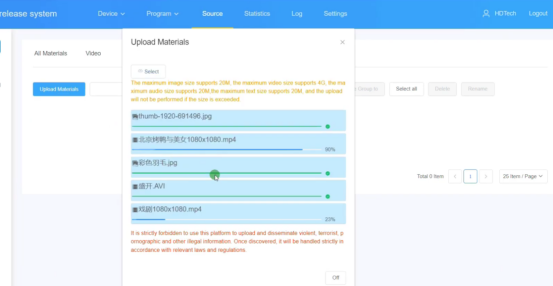
12.動画と画像ファイルを見つけてアップロードします。
13. LEDプログラムリストをクリックします。
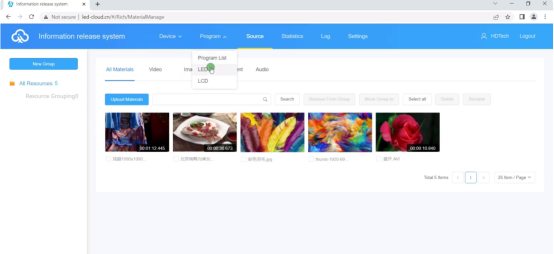
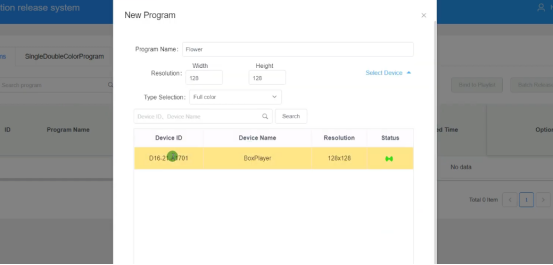
14.「新しいプログラム」をクリックし、プログラム名を設定します。
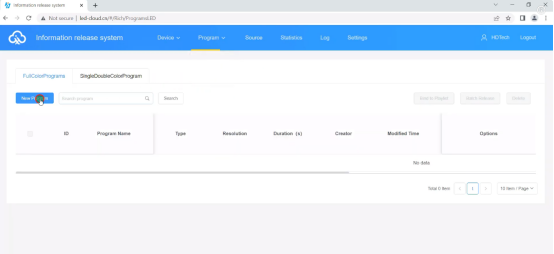
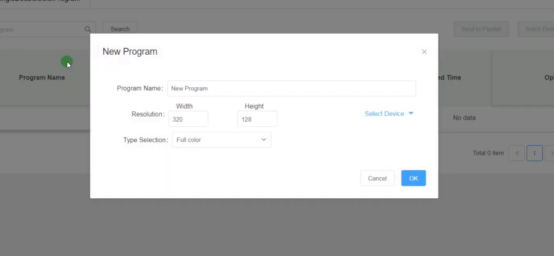
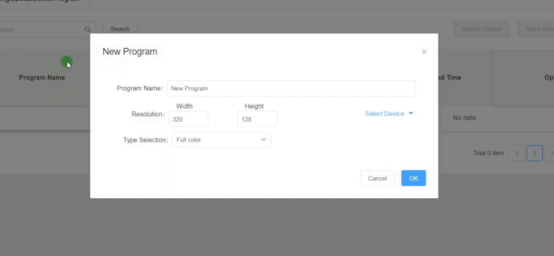
15.「デバイスを選択」をクリックし、D16デバイスを選択して「OK」をクリックすると、プログラム編集インターフェースに入ります。
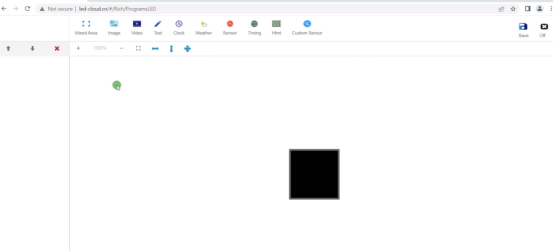
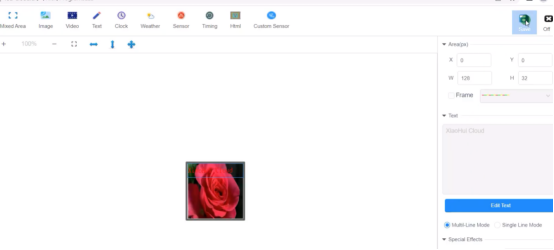
16.インターフェース編集エリアでは、画像、ビデオ、テキスト、時計、天気などのプログラムタイプを追加できます。ここでは、ビデオエリアを追加します。
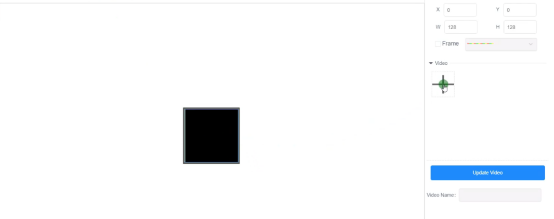
17. エリアの端をドラッグしてエリアのサイズを設定し、このボタンをクリックしてソースリストからビデオファイルを追加します。
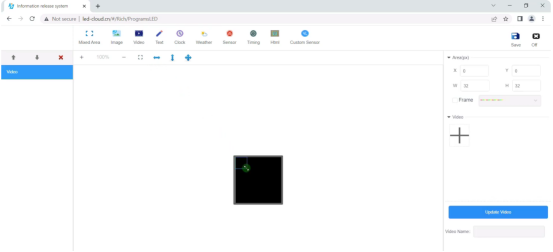
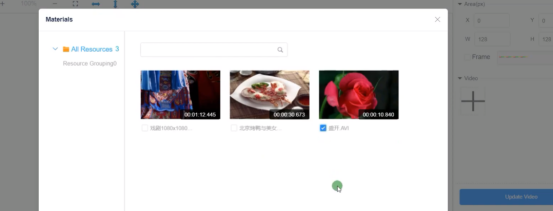
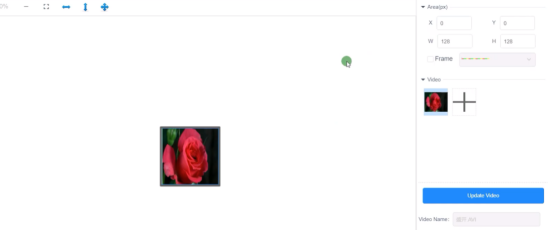
18. [保存]ボタンをクリックしてから、プログラム一覧に戻ります。
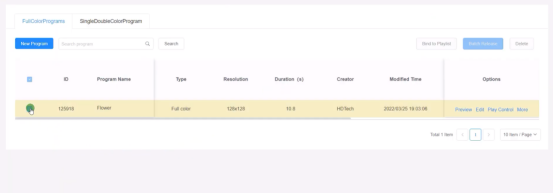
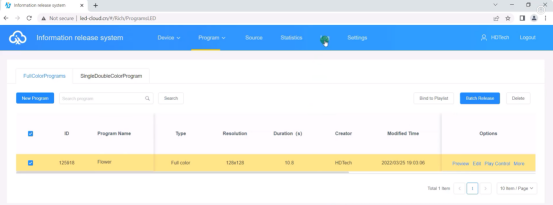
19.編集したプログラムを選択し、「公開」ボタンをクリックして、送信先のD16デバイスを選択します。
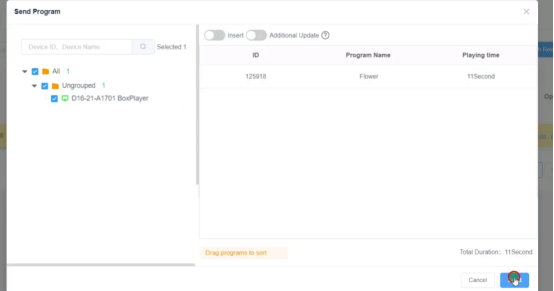
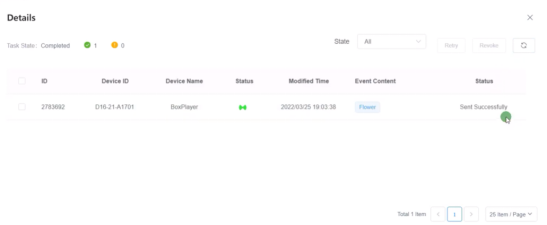
20. ログリストをクリックすると、ログリストでプログラムのリリース状況を確認できます。
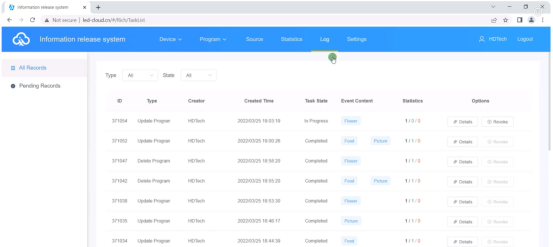
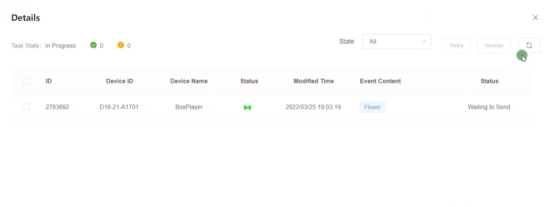
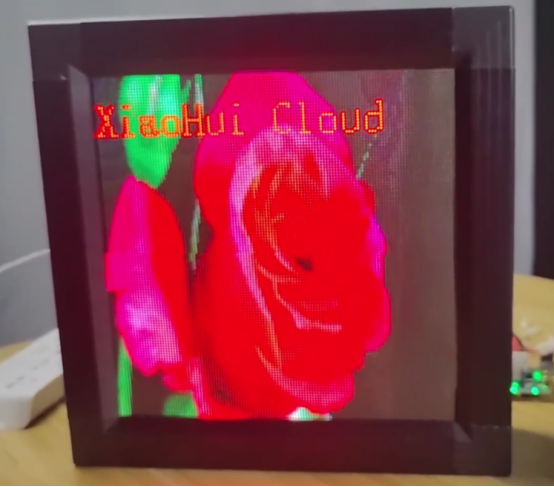
22.ステータスプロンプトが表示されたら、プログラムをディスプレイ画面で再生できます。
 日本語
日本語  English
  简体中文
简体中文  Português do Brasil
  Italiano
  Español
  Français
  Deutsch
  한국어
한국어